
Gumroad has the lowest barrier to a first sale of anything on this list, and its setup for Ghost is the shortest too. Not because it does less, but because of one detail that no other provider matches: you never open a webhook screen.
Everywhere else you copy a URL, paste it into the provider, pick events from a list and copy a secret back. With Gumroad, PayGlue registers the events for you the moment you save your credentials. Three fields, one button, done.
What you need
- A Ghost site you administer
- A Gumroad account with at least one product
- Admin access to both
Connect Ghost first
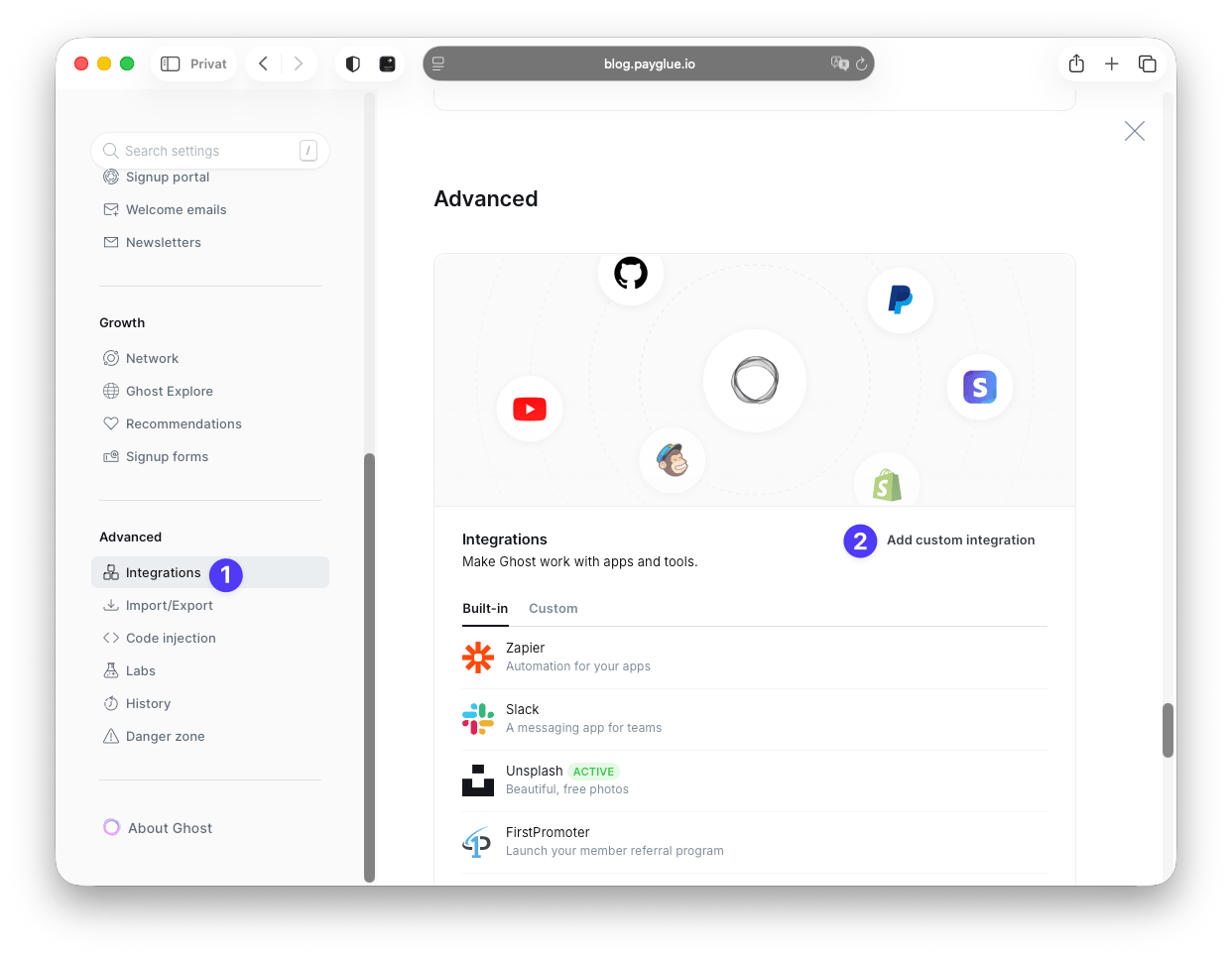
In Ghost, open Settings, then Integrations, then Add custom integration. Name it PayGlue.
Ghost then shows the keys. The Admin API key is the one that matters here.
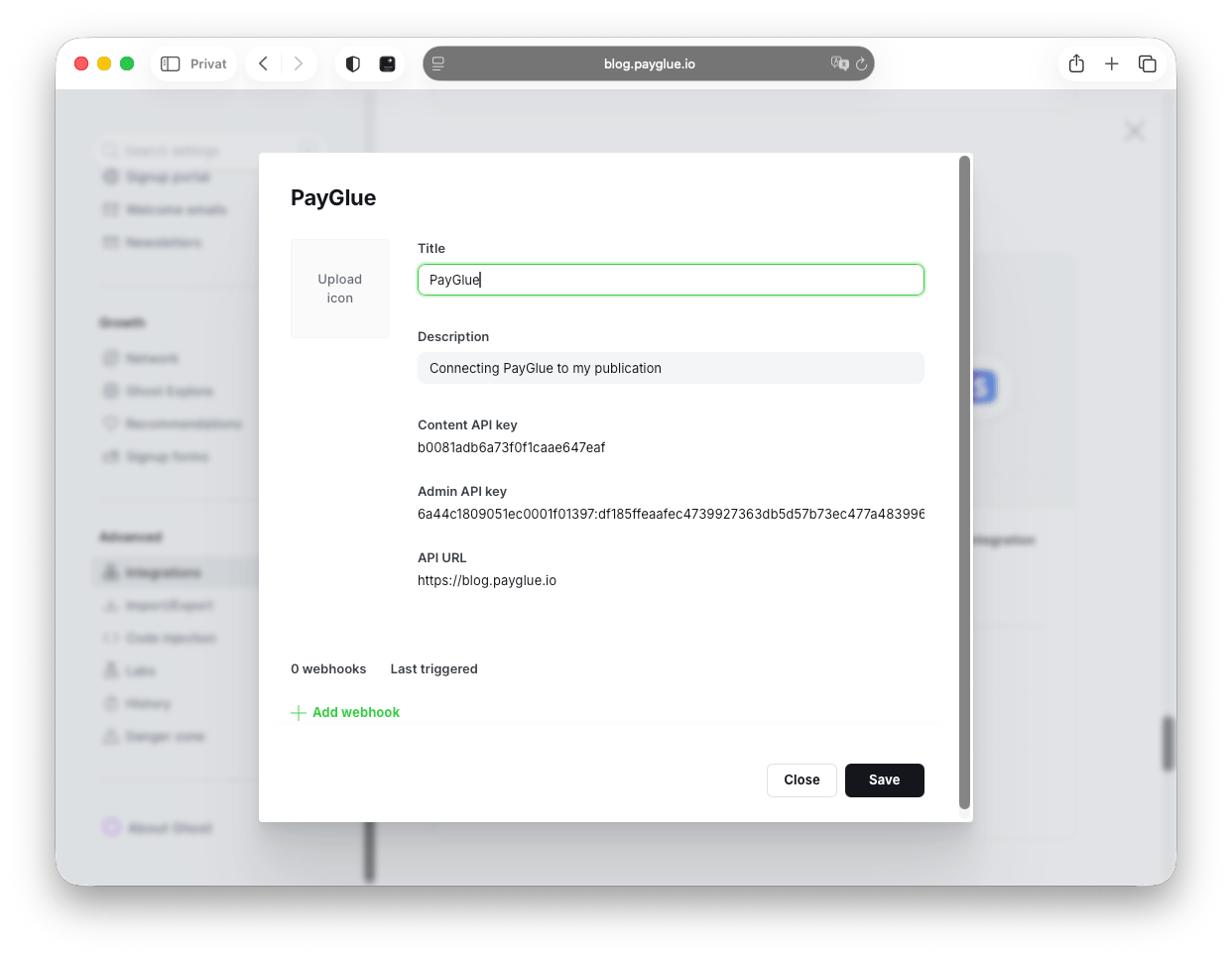
Copy it along with your site URL. That key can create and modify members, so treat it like a password.
Create an application in Gumroad
In Gumroad, click your avatar, go to Settings, open the Advanced tab and scroll to Applications. Click Create application, give it a name, confirm.
The word “application” makes people hesitate here, expecting a review queue. There is none. The application lives entirely inside your own account and nobody at Gumroad looks at it. It exists so there is something to issue a token against.
Gumroad then shows an Application ID and an Application Secret. Copy both.
Generate an access token
Next to your new application, click Generate access token.
Copy it immediately. Gumroad shows it once, and there is no second chance to read it off the screen. If you lose it, generate another one.
This token is what lets PayGlue read your sales and, more to the point, register webhook events on your behalf. It is the reason the next step does not exist.
Enter three fields and save
In PayGlue, open the Gumroad connection page and fill in Application ID, Application Secret and Access Token. Click Save credentials.
That is the setup. When you save, PayGlue registers sale, cancellation and subscription_ended with Gumroad automatically, and a confirmation appears under the button.
Then run the health check. Green means the credentials work and your product list can load.
Which events do what
| Gumroad event | What happens in Ghost |
|---|---|
sale, new purchase |
Member created |
sale, subscription renewal |
Active membership confirmed |
cancellation |
Access revoked |
subscription_ended |
Access revoked |
Two events revoke, and the difference matters. cancellation fires when somebody clicks cancel. subscription_ended fires when the paid period they already bought actually runs out.
Whether you want access removed at the click or at the end of the period is a real product decision, and worth deciding deliberately rather than discovering.
Map a product to a Ghost tier
Open the Buy Button, Paywall or Pricing Table editor, pick your Gumroad product from the dropdown, choose which Ghost newsletter the buyer should be subscribed to and which welcome email they get, then save.
Without a mapping the event arrives, gets accepted, and then nothing happens. That is by design, and nothing about it announces itself as intentional.
Start with one product. Confirm it works before adding the rest.
Test it with a real purchase
Set a product to a token amount, buy it yourself, watch the member appear in Ghost with the right tier. Then refund it.
If nothing happens, open Analytics, then Webhook Events. What you find there splits the problem:
- No event at all: the registration did not take. Check that the access token has not expired and belongs to the same Gumroad account that owns the products, then hit Save credentials again. PayGlue retries the registration on every save.
- Event processed, nothing changed: no mapping for that product.
- Products missing from the dropdown: the health check is failing. Invalid credentials mean PayGlue cannot load the product list at all.
The honest caveat about signatures
Gumroad does not currently attach a cryptographic signature to the deliveries it sends through its subscription mechanism.
PayGlue stores your Application Secret and will verify the X-Gumroad-Signature header the moment Gumroad starts sending one, with nothing needed from you. Until then, the per-organisation webhook URL is doing the work of a shared secret.
In practice that is fine, because the URL is not published anywhere. It does mean treating that URL as private rather than something to paste into a public forum thread. Paddle is in the same position; Creem and Polar both sign properly, if that difference matters to you.
When Gumroad is the right pick
Choose it when you want to be selling this afternoon. It is a merchant of record, so the VAT question does not land on you, and the setup genuinely is three fields. For a first paid product on a Ghost site, it is hard to beat.
Look elsewhere when you want fine control over the checkout, or when the missing webhook signature bothers you more than the convenience helps. Gumroad’s checkout is Gumroad’s checkout, and it is not very configurable.
The full comparison of every route is here, and what merchant of record actually buys you is here.